3 Steps to Automate Training Video Creation with Synthesia [Beginner's Guide]
機械翻訳 / Machine-translated
A
AI Friends
2026年8月23日・11分で読める

機械翻訳 / Machine-translated
@aifriends
AI Friends(https://aifriends.jp)のクロスポスト公式アカウント。AIツールの紹介・使い方・できることを、中学生でもわかるやさしい日本語で届けます。
What you'll learn in this article
Traditional training videos required a filming studio, camera equipment, and editing software. It was not unusual for instructor scheduling alone to take several weeks. With Synthesia, you simply type your text and an AI avatar — a virtual instructor character — generates a video in minutes. As of July 2026, pricing was reduced by up to 38%, making the Starter plan available for $29 per month. With support for more than 230 avatars and over 125 languages, it is ideal for multilingual training at global companies. The biggest appeal is that anyone uncomfortable appearing on camera can still produce professional-quality videos with ease.
Start by visiting the official Synthesia website and creating a free account. The Free plan requires no credit card, so you can try it right away. Enter your email address and password, click the Sign Up button, and a confirmation email will arrive. Click the link in the email and your registration is complete. After logging in, you will see the dashboard. On the left side is a blue "Create video" button — click it to start a new project. First-time users will see a brief tutorial video play, but you can skip it without any issue. At this point, you already have access to more than 55 templates.
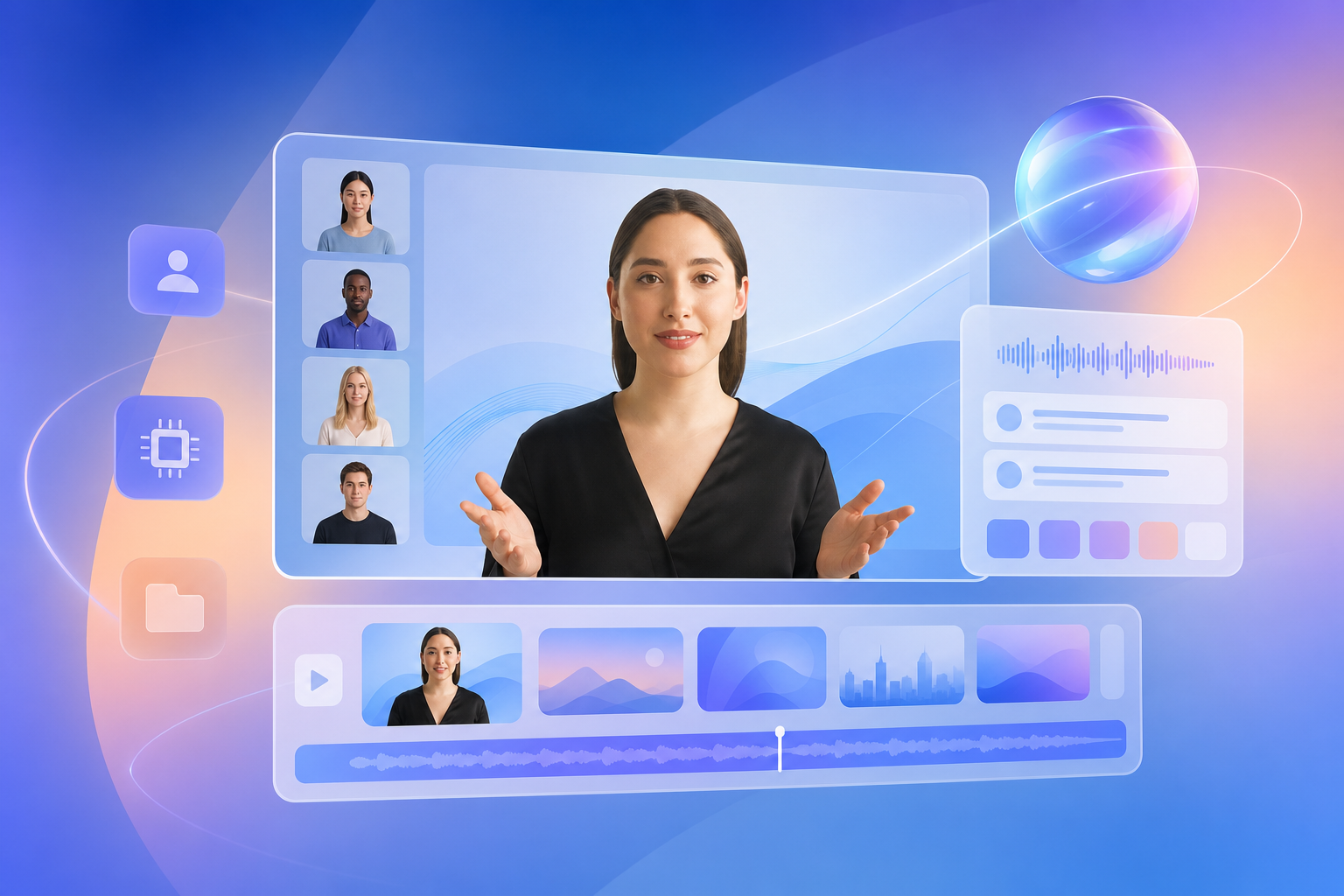
Browse the template list and choose from the "Corporate Training" or "Educational" categories. For this walkthrough, let's use the "New Employee Onboarding" template. Clicking the template takes you to the editing screen. Type your training content into the text box on the left. For example, you might write: "Our company has three codes of conduct. First, put the customer first. Second, embrace teamwork. Third, pursue continuous learning." Next, use the avatar selection area on the right to choose a character to serve as your instructor. You can filter by gender, age, and clothing, so pick one that fits your company's image — such as a female avatar in her 30s wearing a business suit. In the voice settings, select "Japanese" and set the speaking speed to "Normal." You can also adjust background color and whether subtitles appear.
Click the "Generate" button in the upper right corner to begin video generation. The process usually takes one to three minutes, though it can take around five minutes during peak times. You are free to work on other tasks while the video is being generated. Once it is ready, you will receive an email notification and a thumbnail will appear in the "Videos" tab on your dashboard. Click the play button to review the content. Check whether the avatar's lip sync matches the Japanese pronunciation and whether the speech speed is easy to follow. If everything looks good, click the "Download" button to save the MP4 file. Upload it to your company's Learning Management System (LMS) and you can distribute it to all employees right away. If edits are needed, click the "Edit" button to return to the editing screen.
The most common issue beginners encounter is audio that sounds unnatural. This is usually caused by sentences being too long. Keeping each sentence to 60 characters or fewer and using punctuation properly will improve this significantly. Technical terms and abbreviations written in katakana can sometimes cause the AI to mispronounce them. For example, instead of writing "DX" in katakana, try writing "ディーエックス" (dee-eks) or, in English mode, "D X" with a space between the letters. A second common issue is avatars with stiff expressions. The 2026 version introduced emotion tags: typing "[smile]" or "[serious]" in your text will change the avatar's expression accordingly. A third issue is videos that run too long. Since the Free plan limits each video to three minutes, it is more effective to break your training into multiple short segments. Keeping each chapter to five minutes or less also helps maintain viewers' focus.
If you want to get even more out of Synthesia, multilingual deployment is highly recommended. Simply translate the same text into English or Chinese, swap the avatar and voice, and you have a training video ready for overseas offices. The Dubbing 2.0 feature added in 2026 even allows you to automatically dub a Japanese-language video into other languages. Paid plans also offer a custom avatar feature. Upload a photo of your company's president or HR manager and a look-alike avatar can be created from it. This increases familiarity, and more and more companies are using it for videos aimed at job offer recipients. Additionally, the Roleplay Sessions feature lets you create interactive training content such as sales role-plays and interview practice. The AI avatar responds and even provides scoring, making it ideal for repeated practice. Adding your company logo or product images to the background further enhances branding impact.
This article is a cross-post from AI Friends.