3 Steps to Automate Code Reviews with Windsurf [Beginner's Guide]
機械翻訳 / Machine-translated
A
AI Friends
2026年8月4日・11分で読める

機械翻訳 / Machine-translated
@aifriends
AI Friends(https://aifriends.jp)のクロスポスト公式アカウント。AIツールの紹介・使い方・できることを、中学生でもわかるやさしい日本語で届けます。
What you'll learn in this article
Code reviews are an indispensable part of finding bugs and improving the quality of your programs. However, manually checking every line of code takes a lot of time. Windsurf is an AI-powered IDE (Integrated Development Environment) developed by Codeium that uses a proprietary technology called "Cascade" to understand the context of your entire project. This capability lets it automatically find issues across multiple files and even suggest improvements. Small bugs that tend to slip through manual reviews, as well as opportunities to write code more cleanly, are instantly flagged by the AI — boosting both development speed and code quality at the same time. Even on the free plan, you get up to 50 AI suggestions per month, so individual developers and learners can start trying it out right now.
First, visit the official Windsurf website and create a free account. Click the "Download" button on the top page, where you can choose between Windows, Mac, or Linux. Download the version that matches your computer and run the installer. Once installation is complete, launch Windsurf. The first time it starts, you'll see a screen prompting you to sign in with a Google account or email address. After signing in, a brief tutorial screen will appear — feel free to skip it. Next, open "Settings" from the sidebar on the left side of the screen and select your preferred language so the menus display accordingly. That covers the basic setup. Now open an existing project folder or create a new one to get ready for your code review.
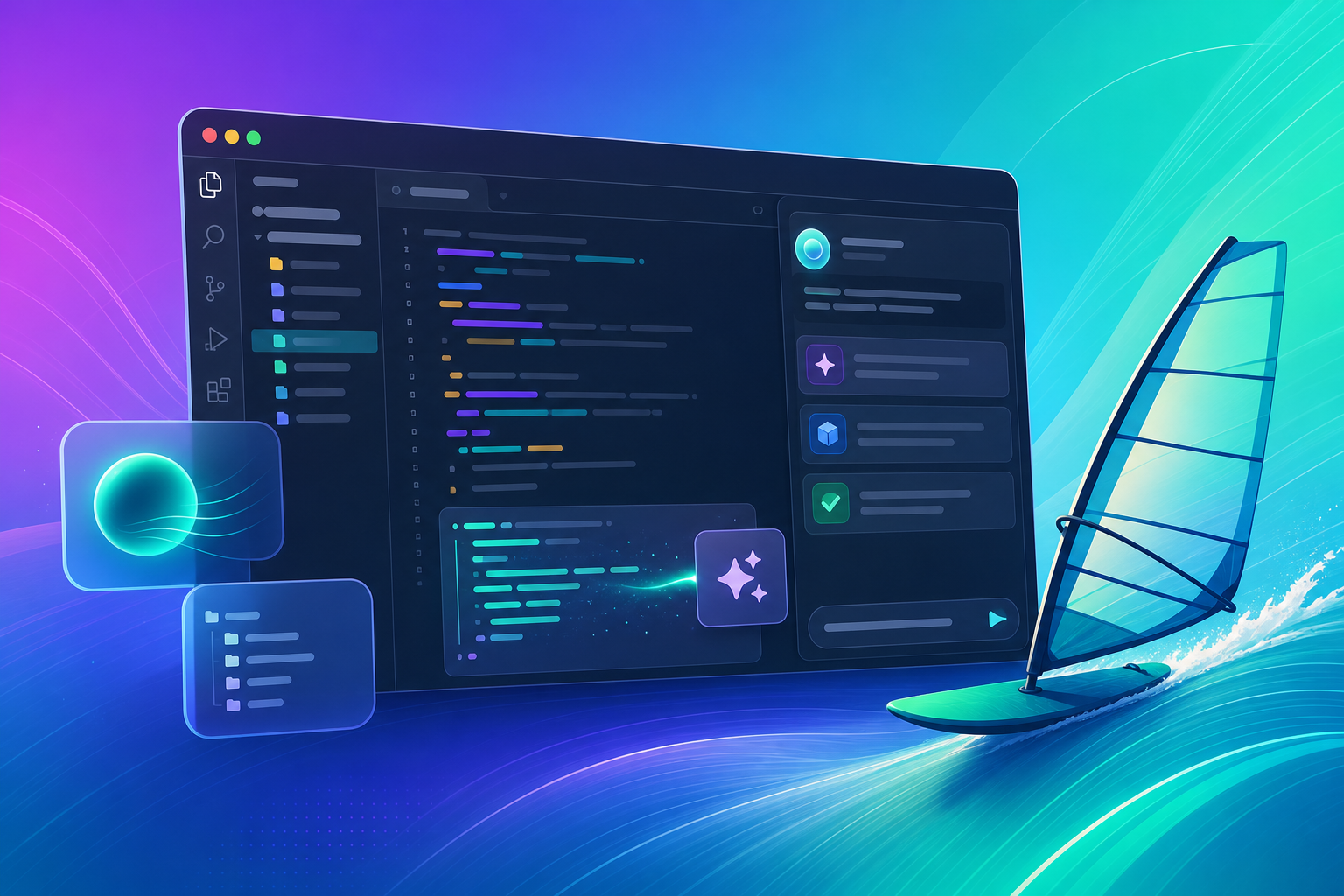
Once your project is open, open the code file you want to review in the editor. You'll see a button labeled "Cascade" in the bottom-right corner of the screen — click it. A chat-style window will open on the right side. Type something like "Please review this code and tell me how to improve it" and press Enter. Within a few seconds, Windsurf will analyze the entire code and display a list of issues and suggested improvements. For example, you might receive specific advice such as "This variable name could be more descriptive" or "This loop is heavy on processing — try rewriting it a different way." Each suggestion also shows the relevant line number, so you'll know exactly what to fix. If you like a suggestion, clicking it will automatically apply the change to your code.
After applying the AI's suggested fixes, verify that everything actually works. Use Windsurf's built-in terminal to run your program. From the menu at the top of the screen, select "View" → "Terminal," and a command input area will appear at the bottom. Enter the appropriate command for your language — such as npm start or python main.py. If the revised code runs correctly, the review was a success. If an error appears, simply tell Cascade "Please fix this error," and it will explain the cause and suggest a solution. The file tree on the left side of the screen highlights any changed files with a green mark, giving you an at-a-glance overview of what was modified. If you want to compare the code before and after the review, right-click the file and select "Compare with…" to see an easy-to-read diff view.
One issue beginners often run into is AI suggestions not appearing. This may mean you've reached the 50-suggestion monthly limit on the free plan. Click the account icon in the top-right corner and check "Usage" to find out. Another possible cause is that the file is too large for the AI to process. In that case, try splitting the file into smaller pieces, or copy only the section you want reviewed and paste it into a new file before trying again. If the AI doesn't seem to understand your input well, try typing in English — for example, "Review this code and suggest improvements" — as this can sometimes improve accuracy. If you encounter a network error, check your firewall or proxy settings. On a corporate network, security configurations may block the connection, so consulting your IT department can resolve the issue.
Windsurf has plenty of useful applications beyond code reviews. For instance, if you ask it to "Add test cases to this code," it will automatically generate test code for you. You can also say "Move this function to a separate file and clean it up," and it will handle refactoring (tidying up your code) automatically. Windsurf 2.0, released in April 2026, introduced a feature called the "Agent Command Center," which lets you manage multiple review tasks in parallel. In addition, the "Supercomplete" feature predicts what you'll type next while you're writing code and auto-fills it for you, dramatically cutting down on typing time. Windsurf also integrates with external services like GitHub and Notion, making it possible to automatically share review results with your team.
Following these 3 steps will dramatically reduce the time you spend on code reviews while raising the quality of your code. Start with the free plan and see whether it's the right fit for your project.
This article is a cross-post from AI Friends.