# How to Create an AI Music Video with One Photo and One Song | A Beginner's Guide to 1MV.ai
機械翻訳 / Machine-translated

機械翻訳 / Machine-translated
Can you create a music video from your own song even without any video editing experience?
With recent advances in AI music generation tools and video generation technology, it's now possible to start producing videos from a single photo and a music file — no professional editing skills required.
In this guide, we'll walk beginners through how to create an AI music video using 1MV.ai with an original song made in Suno or any audio track you've prepared yourself.
Before creating your video, get your image and music file ready.
Preparing Your Image
Here are some examples of images you can use:
If you want natural-looking AI Lip Sync, we recommend using an image where the face is clearly visible and the mouth is not covered.
Avoid photos where the face is too small, extreme profile shots, or dark images where the expression is hard to make out.
Preparing Your Music File
Prepare your finished track in MP3 or WAV format.
Original songs created in Suno or Udio can also be used — just export them as audio files.
Choose a file where the vocals are as clear as possible and the audio quality is consistent.
First, go to the 1MV.ai official website.
If you don't have an account, follow the on-screen instructions to register. If you already have an account, simply log in.
After logging in, navigate to the workspace related to music video creation. Review the available creation menus and your account conditions before starting a project.
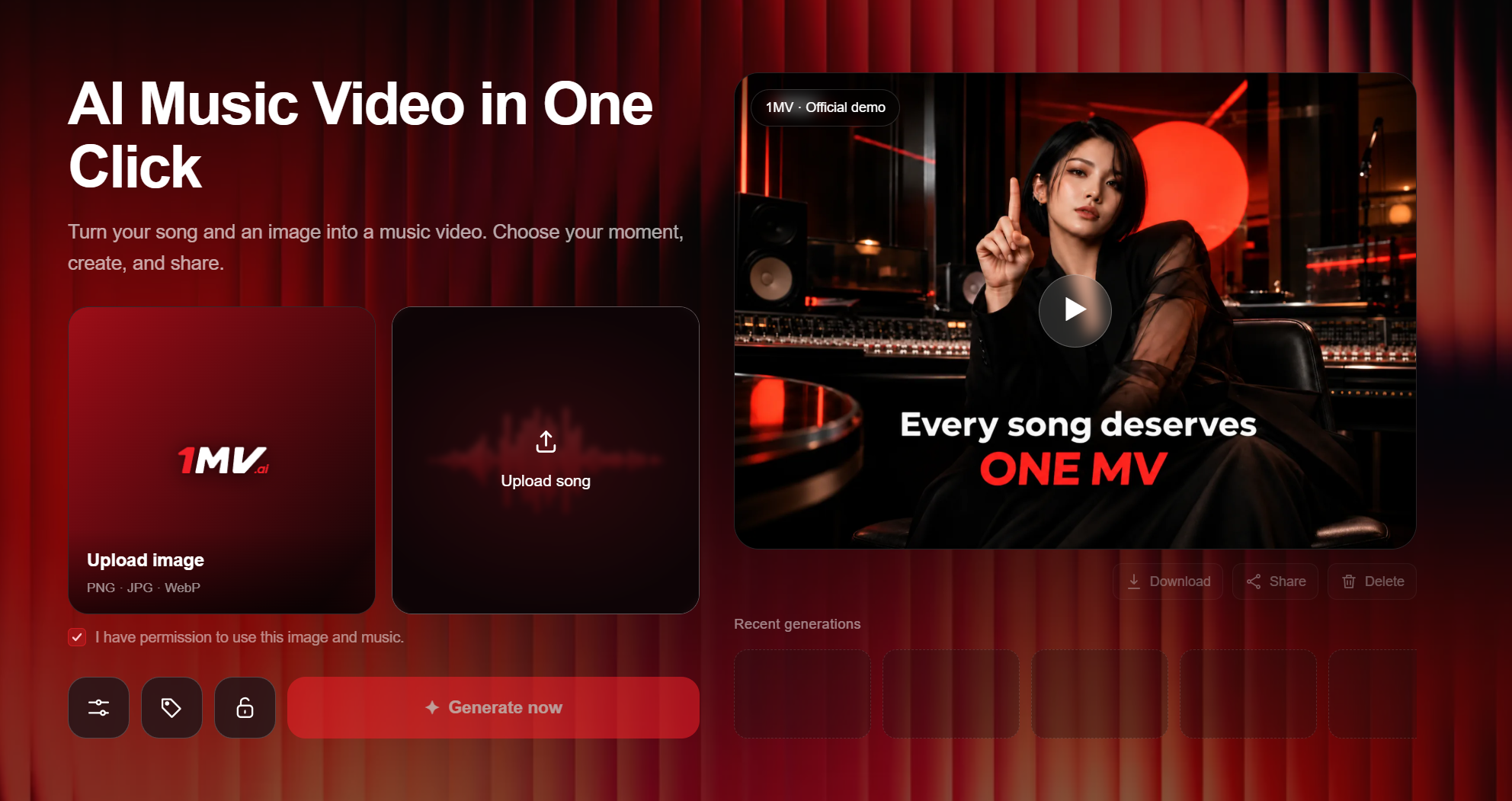
1MV.ai is an AI Music Video Generator that lets you create videos by combining images and music. Unlike typical image animation tools, it features AI Lip Sync, automatic camera movement, and scene transitions synchronized to the music.
Step 1: Upload Your Image
Start by uploading the portrait photo or album cover you prepared.
If it's your first time, we recommend using an image with a simple background where the person's face is clearly visible.
If you're using an AI singer or virtual character, choose an image where the facial outline and mouth are easy to see.
Step 2: Upload Your Music File
Next, add the MP3 or WAV file you prepared.
If you're using a track made in Suno, just have your finished audio file ready and upload it.
After uploading, verify that the file has been loaded correctly. Knowing the song's length and vocal structure in advance will also help when you review the finished video.
Next, choose the aspect ratio to match the platform where you plan to post your video.
| Aspect Ratio | Main Use Case |
|---|---|
| 16:9 | Standard YouTube videos |
| 9:16 | TikTok, YouTube Shorts, Instagram Reels |
| 1:1 | Square social media content |
For a standard music video on YouTube, the landscape 16:9 format is recommended.
If you want to publish short music videos on TikTok or Instagram Reels, the vertical 9:16 format is the better choice.
Square videos can also work well for posts introducing a song on platforms like Instagram.
Once you've set the aspect ratio, review the Director Style options.
At this step, it's important to think about the overall direction and visual mood of your video.
Directing
Directing relates to elements like the overall production style and camera expression. Choose with an image of the visual flow that suits your song's atmosphere in mind.
Art Direction
Art Direction covers the visual style and artistic mood of the video.
For example, you might consider directions like:
Example Settings
If you're making a ballad with a vibe reminiscent of a Japanese drama, aim for natural character portrayal and a calm, cinematic feel.
Rather than going for complex production right from the start, we recommend choosing a style that fits naturally with your song and image.
Before starting generation, review your materials and settings one more time.
Check the following items:
Once everything looks good, start the creation process from the generation function shown on screen.
During generation, the AI will compose the video based on your uploaded image and music along with your chosen settings.
Since 1MV.ai uses a credit system, make sure to check how many credits are needed before generating multiple times. Preparing your materials carefully from the start will help reduce unnecessary regeneration.
Once the video is finished, don't download it right away — play it through and check the quality.
Lip Sync with the Music
Check whether the character's lip movements match the vocals naturally. Pay particular attention to sections where the lyrics move quickly or where multiple voices overlap.
Face and Expressions
Confirm that the face shape isn't changing unnaturally and that the expressions don't look off.
Camera Movement
In scenes where the camera moves, check that the character isn't being cut off at the edges of the screen and that the composition doesn't look unnatural.
Music and Scene Transitions
Check that scene changes align naturally with the rhythm and atmosphere of the song.
Character Consistency
It's also important to confirm that the character's face, appearance, and visual features don't change significantly throughout the entire video.
Once you've finished reviewing, use the download function on screen to save your video.
Depending on where you plan to post, here are some ways to use it:
Before posting, also check for any cropping issues, audio quality, and the upload requirements of each platform.
Q1. Can I make a music video with just one photo?
Yes. 1MV.ai allows you to create videos using a single image and a music file. However, the quality of the result will depend on the source image and audio quality.
Q2. Does it support songs in different languages?
You can try it with songs in multiple languages. However, lip sync accuracy may vary depending on the pronunciation and vocal composition of each language, so we recommend reviewing the generated result.
Q3. Can I use songs generated with Suno?
Yes. You can use songs made in Suno by preparing them in MP3 or WAV format. However, before actually using or publishing the music, make sure to check the usage rights and distribution terms for the track.
Q4. What kind of image works best for AI Lip Sync?
A clear photo of a person facing forward, with the mouth not covered, is recommended. Avoid images that are too dark or where the face appears very small.
Q5. Can I also create vertical music videos?
Yes. Multiple aspect ratios are available, and vertical videos are suited for platforms like TikTok, Instagram Reels, and YouTube Shorts. Check the creation screen to see which ratios are actually available to select.
1MV.ai is a tool that lets even those without professional video editing experience turn their music into visual content.
It's an especially interesting option for indie musicians creating songs in Suno or Udio, creators working with AI singers or virtual characters, and anyone who wants to easily produce music videos for social media.
There's no need to tackle complex video production right away. Start by preparing just one photo and one finished song, and explore the visual style that works best for you.